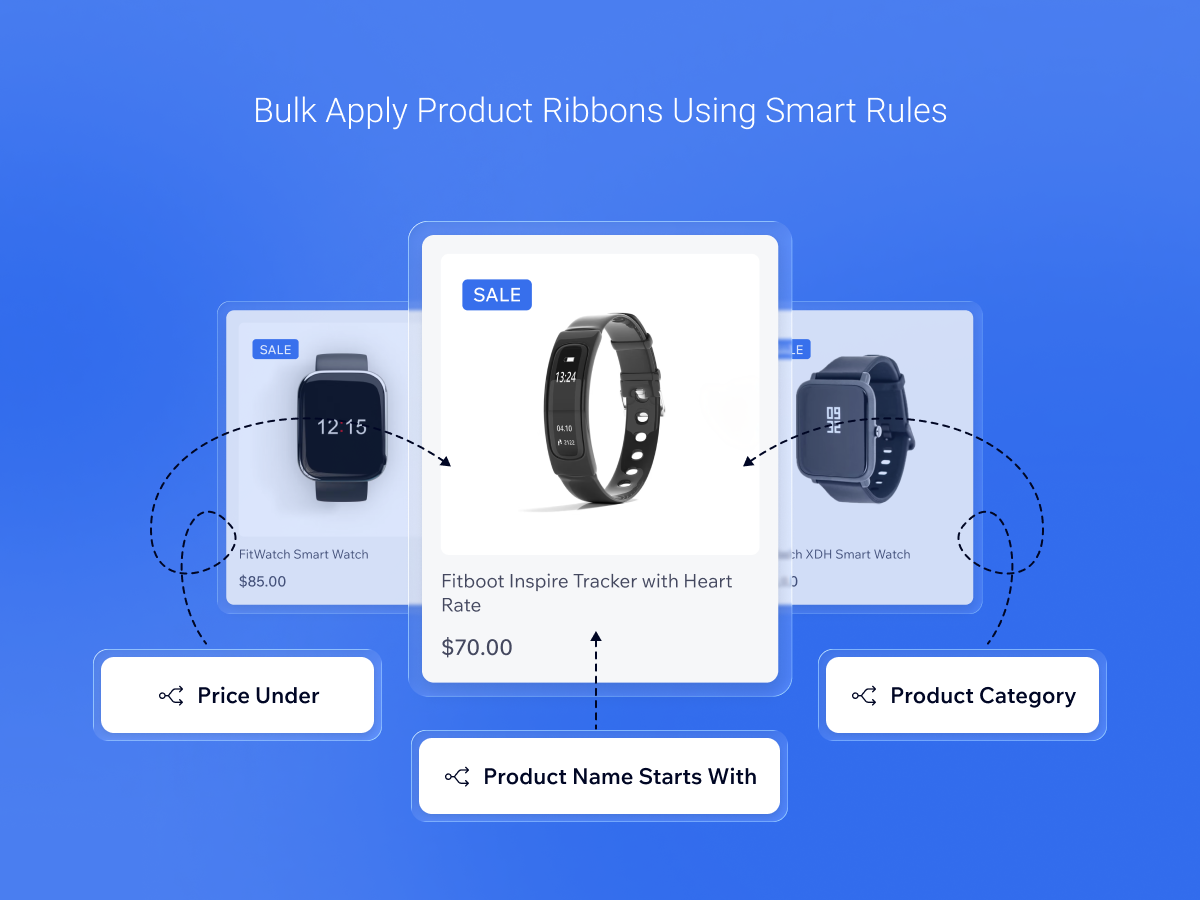
Set a rule once and matching products get the right ribbon automatically
Sale, low stock and new arrival badges stay accurate as prices and inventory change
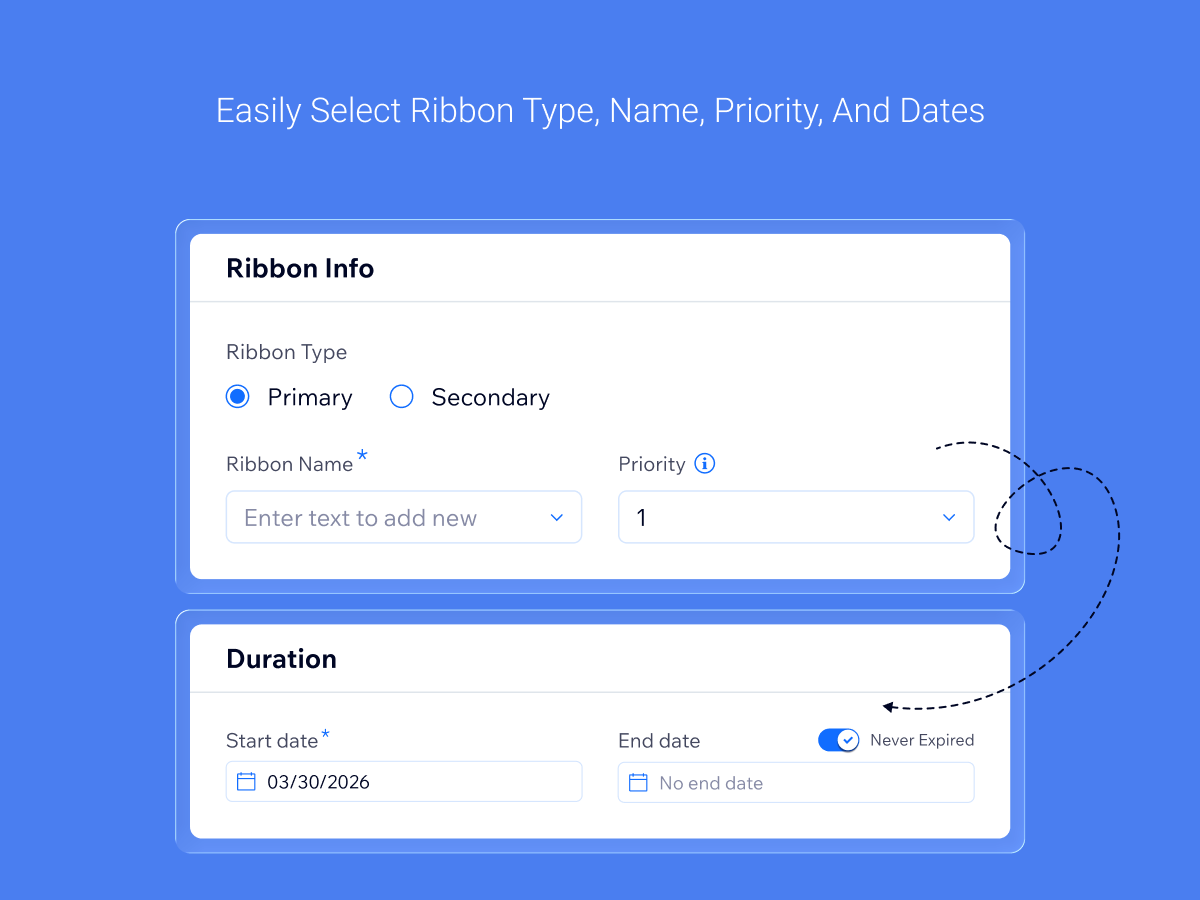
Your priority order decides which ribbon shows when several rules match
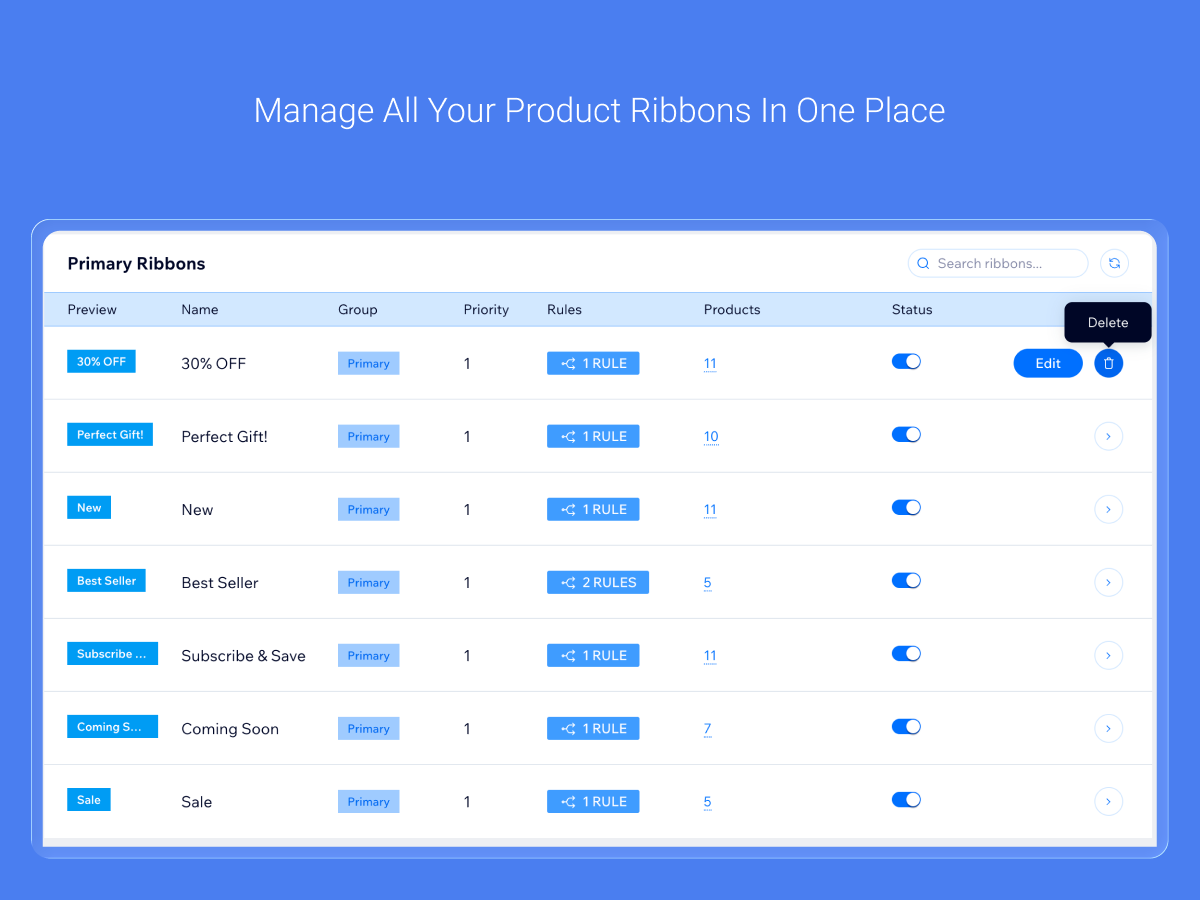
Pause a rule after a campaign and switch it back on without rebuilding it
Product ribbons sell for you when they are right, and they rarely stay right when you set them by hand. Set a rule once and every product that matches gets its ribbon automatically: a Sale badge on everything discounted, a Low Stock label when inventory runs down, a New Arrival ribbon on a category or a tag. When prices, stock or discounts change, the ribbons in your store follow within minutes, so a Sale badge does not stay on a product after its discount ends.
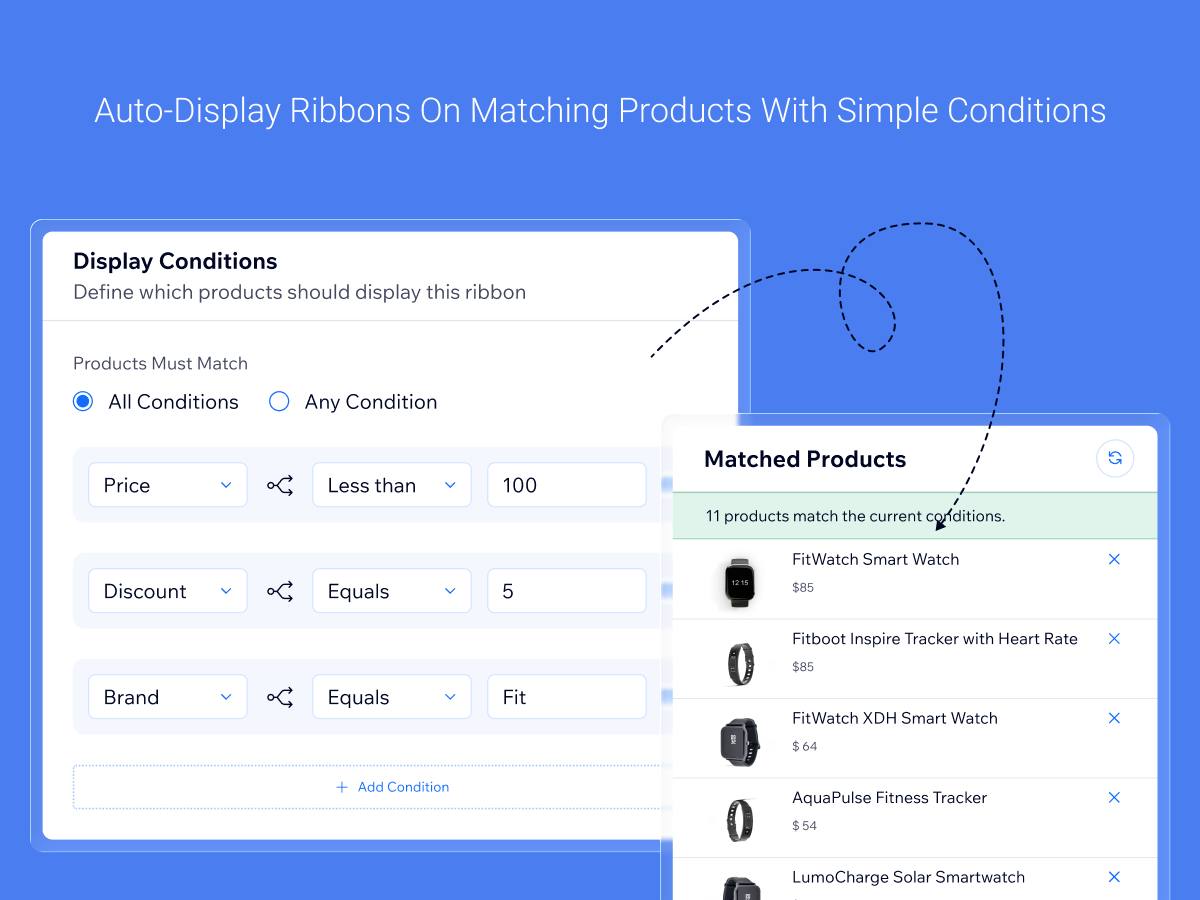
Build rules from category, price, discount, inventory, tags, SKU, brand or product options, and combine several conditions in one rule. Choose a main ribbon that shows on the product image, or add extra ribbons alongside it. When more than one rule matches a product, your priority order decides which ribbon wins. Need an exception? Include or exclude single products by SKU.
While you build a rule you see the products it matches, so you can check it before you save. Pause a rule when a campaign ends and switch it back on later. Delete a rule and you choose whether its ribbons come off your products or stay. Your product labels and badges show through your store's own ribbon display, so they match your store's look.